
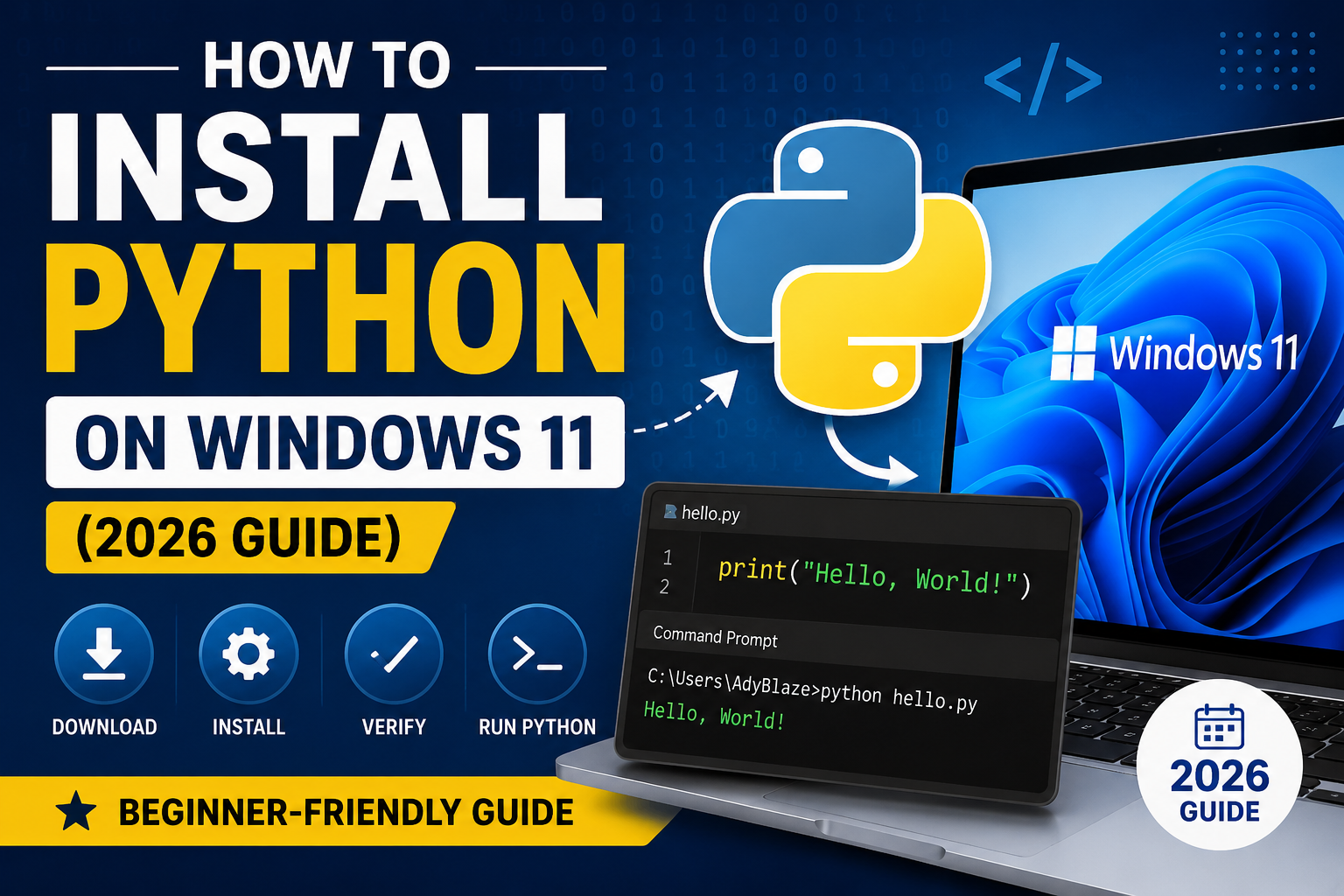
Python is one of the most popular programming languages in the world. Whether you want to become a software developer, automate repetitive tasks, build AI applications, create websites, or analyze data, Python is an excellent language to start with.
In this beginner-friendly guide, you’ll learn how to install Python on Windows 11, verify the installation, configure environment variables, use pip, and run your first Python program.
Why Learn Python?
Python is widely used in many fields, including:
- Web Development
- Artificial Intelligence
- Machine Learning
- Data Science
- Automation
- Cybersecurity
- Desktop Applications
- Game Development
Python’s simple syntax makes it ideal for beginners.
System Requirements
Before installing Python, ensure your computer meets these requirements.
- Windows 11 (64-bit)
- Internet Connection
- Administrator Permission
- At least 500 MB Free Disk Space
Step 1: Download Python
Visit the official Python website.
Official Website
https://www.python.org/downloads/windows
Click Download Python 3.x.x.
Always download Python from the official website for security and stability.
Step 2: Run the Installer
Locate the downloaded installer.
Double-click it.
You’ll see the Python Setup Wizard.
Step 3: Check “Add Python to PATH”
This is the most important step.
At the bottom of the installer window, check:
✅ Add Python to PATH
If you forget this option, Windows won’t recognize Python commands.
Step 4: Click Install Now
Click:
Install Now
The installer will copy all required files.
Installation usually takes less than five minutes.
Step 5: Finish Installation
Once completed, you’ll see:
Setup was successful
Click:
Close
Python is now installed.
Step 6: Verify Python Installation
Open Command Prompt.
Press:
Windows + RType:
cmdPress Enter.
Run:
python --versionExample:
Python 3.14.0If you see the version number, Python is installed correctly.
Step 7: Verify pip
Run:
pip --versionExample:
pip 25.x from ...pip is Python’s package manager.
It allows you to install external libraries.
Step 8: Upgrade pip
Run:
python -m pip install --upgrade pipThis ensures you’re using the latest version.
Step 9: Create Your First Python Program
Open Notepad.
Write:
print("Hello, World!")Save the file as:
hello.pyStep 10: Run Your Python Program
Open Command Prompt.
Navigate to the folder.
Example:
cd DesktopRun:
python hello.pyOutput:
Hello, World!Congratulations!
You’ve written your first Python program.
Install Python Packages
You can install packages using pip.
Example:
pip install requestsInstall Flask:
pip install flaskInstall Django:
pip install djangoInstall NumPy:
pip install numpyInstall Pandas:
pip install pandasInstall VS Code for Python
Microsoft Visual Studio Code is one of the best Python editors.
Install:
- Visual Studio Code
- Python Extension
- Pylance Extension
These tools provide:
- Syntax Highlighting
- Auto Completion
- Debugging
- Code Suggestions
Check Installed Packages
Run:
pip listExample:
numpy
pandas
requests
flask
Update Python Packages
Update one package:
pip install --upgrade requestsUpdate pip:
python -m pip install --upgrade pipUninstall a Package
pip uninstall requestsCommon Installation Errors
Python is not recognized
Error:
'python' is not recognized...Solution:
- Reinstall Python
- Check “Add Python to PATH”
pip is not recognized
Run:
python -m ensurepip --default-pipPermission Denied
Run Command Prompt as Administrator.
Multiple Python Versions
Check installed versions:
py --listRun specific version:
py -3.14Useful Python Commands
Check Version
python --versionCheck pip
pip --versionUpgrade pip
python -m pip install --upgrade pipInstall Package
pip install package-nameList Packages
pip listUninstall Package
pip uninstall package-nameTips for Beginners
- Practice daily.
- Learn Python syntax first.
- Solve coding problems.
- Build small projects.
- Learn Git and GitHub.
- Explore Python libraries.
- Use VS Code for coding.
Frequently Asked Questions
Is Python free?
Yes. Python is completely free and open-source.
Which Python version should I install?
Always install the latest stable version from the official website.
Does Python include pip?
Yes. Modern Python versions come with pip pre-installed.
Is Python good for beginners?
Yes. Python is one of the easiest programming languages to learn.
Can I install multiple Python versions?
Yes. Windows supports multiple Python versions.
Which IDE is best for Python?
Popular choices include:
- Visual Studio Code
- PyCharm
- Spyder
- Jupyter Notebook
Final Thoughts
Installing Python on Windows 11 is a straightforward process that takes only a few minutes. Once installed, you can begin learning programming, building web applications, automating tasks, exploring artificial intelligence, or analyzing data.
For beginners, the best approach is to practice consistently, build small projects, and gradually explore Python’s powerful ecosystem of libraries and frameworks. With the right learning path, Python can open the door to careers in software development, data science, machine learning, cybersecurity, and automation.