
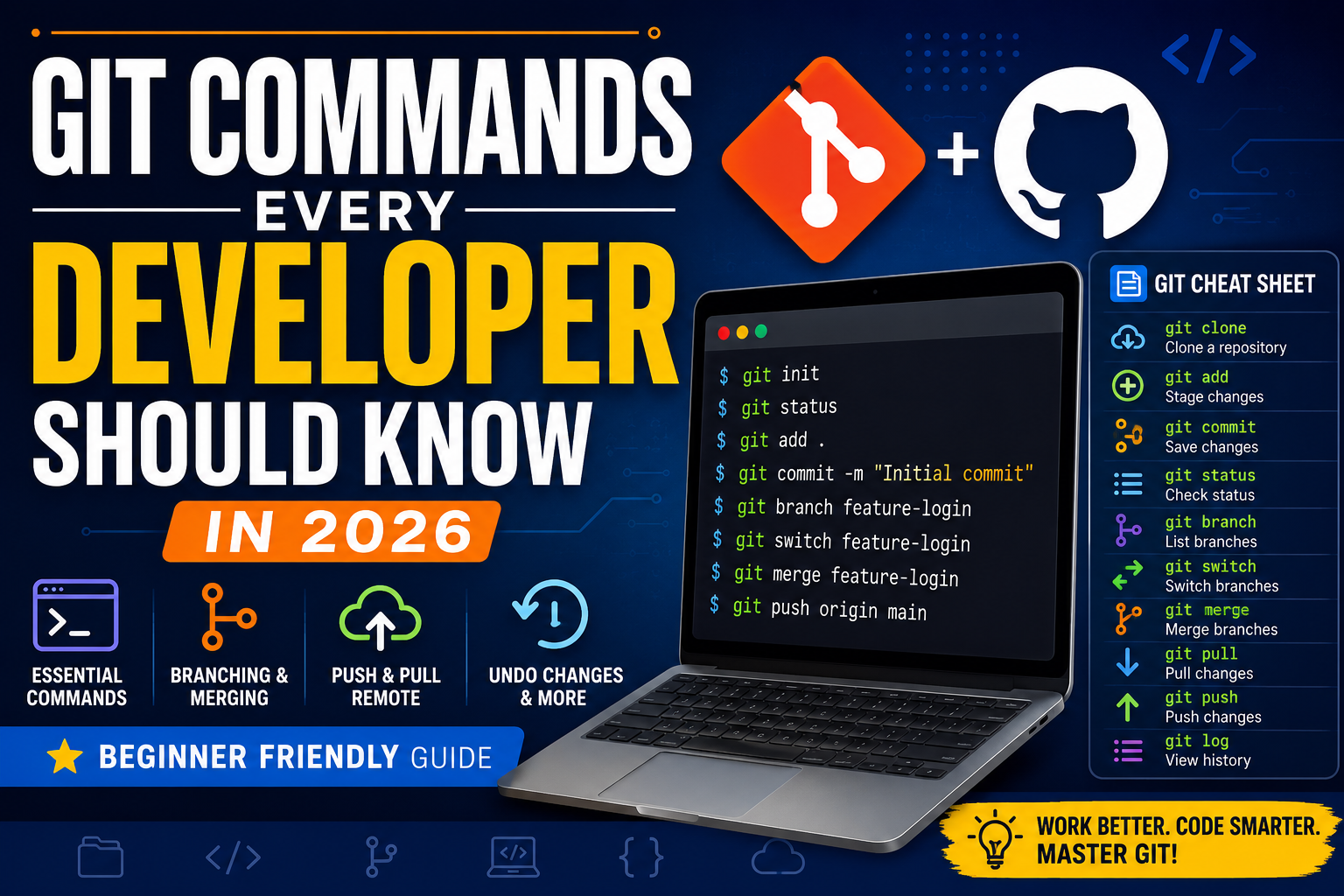
Git is one of the most important tools in modern software development. Whether you’re building websites, developing mobile applications, working with PHP, Python, JavaScript, React, or contributing to open-source projects, knowing Git can make your development workflow much easier.
Git allows developers to track changes, create branches, collaborate with other developers, undo mistakes, and maintain different versions of a project.
If you’re a beginner, Git can initially seem complicated because there are many commands to remember. The good news is that you don’t need to memorize hundreds of commands.
In this guide, we’ll cover the most useful Git commands every developer should know in 2026, with simple examples.
What Is Git?
Git is a distributed version control system (DVCS) used to track changes in source code and other files.
With Git, you can:
- Track code changes
- Create backups of your project history
- Work on multiple features simultaneously
- Create and manage branches
- Collaborate with other developers
- Revert unwanted changes
- Compare different versions
- Work with GitHub and other Git hosting platforms
Git works locally on your computer, while platforms such as GitHub provide remote repositories for collaboration and hosting.
Installing Git
Before using Git commands, you need to install Git on your computer.
After installation, verify it with:
git --versionYou should see something similar to:
git version 2.x.xThe exact version may differ depending on when you install Git.
1. git config
The git config command is used to configure Git.
Before making commits, it’s a good idea to configure your name and email.
Set your username
git config --global user.name "Your Name"Set your email
git config --global user.email "you@example.com"Check your configuration
git config --listThese details are associated with your Git commits.
2. git init
The git init command creates a new Git repository.
For example:
mkdir my-project
cd my-project
git init
Git will create a hidden .git directory inside your project.
From this point, Git can track changes in the project.
3. git status
One of the most frequently used Git commands is:
git statusIt shows the current state of your working directory.
For example, it can tell you:
- Which files have changed
- Which files are untracked
- Which files are staged
- Which branch you’re currently using
A good habit is to run git status frequently.
4. git add
The git add command stages changes for the next commit.
To add a specific file:
git add index.phpTo add multiple files:
git add index.php style.css script.jsTo stage all changed files:
git add .Why staging matters
Git uses a staging area between your working files and your commit.
The basic workflow is:
Working Directory
       ↓
   git add
       ↓
Staging Area
       ↓
  git commit
       ↓
Repository
5. git commit
A commit saves staged changes into Git’s project history.
Example:
git commit -m "Add homepage design"Good commit messages should describe what changed.
Examples:
git commit -m "Fix login validation"git commit -m "Add user registration page"git commit -m "Update responsive navigation"Avoid vague messages such as:
changes
update
test
stuff
6. git log
The git log command displays your commit history.
git logFor a shorter version:
git log --onelineExample:
a81d42c Fix login validation
c72a918 Add registration form
1f83b42 Create project structure
This is useful when you need to find previous versions of your project.
7. git diff
Use git diff to see changes that haven’t been staged.
git diffAfter staging changes, you can inspect staged differences with:
git diff --stagedThis is particularly useful before committing.
8. git branch
Branches allow you to work on different features without directly modifying the main branch.
List branches:
git branchCreate a branch:
git branch feature-loginSwitch to it:
git switch feature-loginYou can also create and switch to a new branch in one command:
git switch -c feature-login9. git switch
git switch is a modern Git command for changing branches.
git switch mainSwitch to another branch:
git switch feature-loginCreate and switch:
git switch -c new-featureFor beginners, git switch is generally easier to understand than using git checkout for branch switching.
10. git merge
When you finish working on a feature, you can merge it into another branch.
First switch to the target branch:
git switch mainThen merge:
git merge feature-loginGit will combine the changes from the feature branch into main.
11. git clone
The git clone command downloads an existing remote repository to your computer.
For example:
git clone https://github.com/username/project.gitThen:
cd projectYou now have a local copy of the repository.
This is one of the first commands you’ll use when working with an existing project hosted on GitHub.
12. git remote
The git remote command manages connections to remote repositories.
Check existing remotes:
git remote -vYou may see:
origin  https://github.com/username/project.git (fetch)
origin  https://github.com/username/project.git (push)
Here, origin is the conventional name for the primary remote repository.
13. git remote add origin
If you’ve created a local repository and want to connect it to a remote repository:
git remote add origin https://github.com/username/project.gitVerify it:
git remote -v14. git push
The git push command uploads your local commits to a remote repository.
For a new main branch:
git push -u origin mainAfter the upstream relationship is established, you can usually use:
git push15. git pull
The git pull command retrieves changes from a remote repository and integrates them into your current branch.
git pullThis is commonly used when working with a team.
For example:
Developer A → pushes changes
                  ↓
              GitHub
                  ↓
Developer B → git pull
16. git fetch
git fetch downloads information about changes from the remote repository without automatically integrating those changes into your current branch.
git fetchThis is useful when you want to inspect remote changes before deciding whether to merge them.
A common distinction is:
git fetch → download remote information
git pull   → fetch + integrate changes
17. git stash
Sometimes you have unfinished changes but need to switch branches.
Instead of committing incomplete work, you can temporarily store it:
git stashYour working directory becomes clean.
Later, restore the changes:
git stash popThis is extremely useful during active development.
18. git stash list
To see your saved stashes:
git stash listExample:
stash@{0}: WIP on main
stash@{1}: WIP on feature-login
19. git restore
The git restore command can be used to discard changes in your working directory.
For example:
git restore index.phpThis restores the file to the version tracked by Git.
Be careful with this command because discarded uncommitted changes may be difficult to recover.
20. git restore –staged
If you accidentally stage a file, you can remove it from the staging area:
git restore --staged index.phpThe file remains modified, but it is no longer staged.
21. git reset
git reset can move your branch to another commit and can also modify the staging area.
For example:
git reset HEAD~1This moves back one commit while keeping the changes in your working directory in many common scenarios.
Because git reset can rewrite local history, beginners should use it carefully.
22. git revert
If you want to undo a previous commit while preserving the existing project history, git revert is often safer.
git revert <commit-hash>Git creates a new commit that reverses the changes introduced by the selected commit.
This is particularly useful for shared branches.
23. git rm
To remove a tracked file:
git rm old-file.phpThen commit the deletion:
git commit -m "Remove old PHP file"24. git mv
Rename or move a tracked file:
git mv old-name.php new-name.phpThen commit:
git commit -m "Rename PHP file"25. git tag
Tags can mark important points in your project’s history, such as software releases.
Create a tag:
git tag v1.0.0List tags:
git tagPush a tag:
git push origin v1.0.026. git show
Use git show to inspect information about a commit.
git show <commit-hash>You can see the commit information and changes associated with it.
27. git blame
git blame shows which commit and author last modified each line of a file.
git blame index.phpThis can be useful when investigating when a particular piece of code was changed.
28. git cherry-pick
Sometimes you want to apply a specific commit from another branch without merging the entire branch.
Use:
git cherry-pick <commit-hash>This is an advanced command and should be used carefully, especially on shared branches.
29. git rebase
git rebase moves or reapplies commits onto another base.
For example:
git switch feature-login
git rebase main
Rebase can help maintain a cleaner linear project history, but it can rewrite commit history.
Avoid rebasing commits that other developers are already relying on unless your team has an agreed workflow.
30. git help
If you forget how a Git command works, Git includes built-in documentation.
git helpFor a specific command:
git help commitYou can also use:
git commit --helpEssential Git Workflow for Beginners
If you’re just starting with Git, you don’t need to memorize all 30 commands immediately.
Learn this workflow first:
git init
git status
git add .
git commit -m "Initial commit"
git branch
git switch -c feature
git switch main
git merge feature
git push
git pull
For an existing project:
git clone <repository-url>
cd project
git status
git pull
Git vs GitHub
A common beginner question is:
Are Git and GitHub the same thing?
No.
Git
Git is the version control software running on your computer.
GitHub
GitHub is an online platform for hosting Git repositories and collaborating with other developers.
Other Git hosting platforms include GitLab and Bitbucket.
Think of it this way:
Git = Version Control System

GitHub = Online Platform for Git Repositories
Best Git Practices
Following a few simple practices can make your Git workflow much safer.
Write meaningful commit messages
Instead of:
git commit -m "update"Use:
git commit -m "Fix mobile navigation menu"Commit small logical changes
Avoid putting unrelated changes into one huge commit.
Pull before starting work
When working with a team:
git pullbefore starting new work can help reduce conflicts.
Use branches for features
Instead of developing everything directly on main:
git switch -c feature-paymentDon’t commit sensitive information
Never commit:
.env
passwords
API keys
database credentials
private keys
Use a .gitignore file for files that shouldn’t be tracked.
Example .gitignore File
A basic web development .gitignore might include:
.env
node_modules/
vendor/
*.log
.DS_Store
For PHP projects, you might also exclude environment-specific configuration files depending on your deployment setup.
Frequently Asked Questions
Is Git difficult to learn?
The basics are relatively easy to learn. Start with clone, status, add, commit, pull, push, branch, and merge.
Is Git free?
Yes. Git is free and open-source software.
Do I need GitHub to use Git?
No. Git works locally without GitHub.
Can I use Git for PHP projects?
Yes. Git works with PHP, JavaScript, Python, Java, C++, and virtually any text-based software project.
What is the most important Git command?
There isn’t one single most important command. Beginners should become comfortable with:
git status
git add
git commit
git pull
git push
git switch
Should beginners learn GitHub?
Yes. GitHub is widely used for collaboration, open-source development, portfolios, and software projects.
Conclusion
Git is an essential skill for modern developers. You don’t need to memorize every Git command to get started. Learn the core workflow first:
Create / Clone
      ↓
Make Changes
      ↓
git status
      ↓
git add
      ↓
git commit
      ↓
git push
      ↓
GitHub
Once you’re comfortable with this workflow, start learning branches, merging, stashing, rebasing, reverting, and other advanced Git features.
Whether you’re a PHP developer, Python developer, JavaScript developer, WordPress developer, or full-stack developer, Git will make it much easier to manage your code and collaborate with others.