
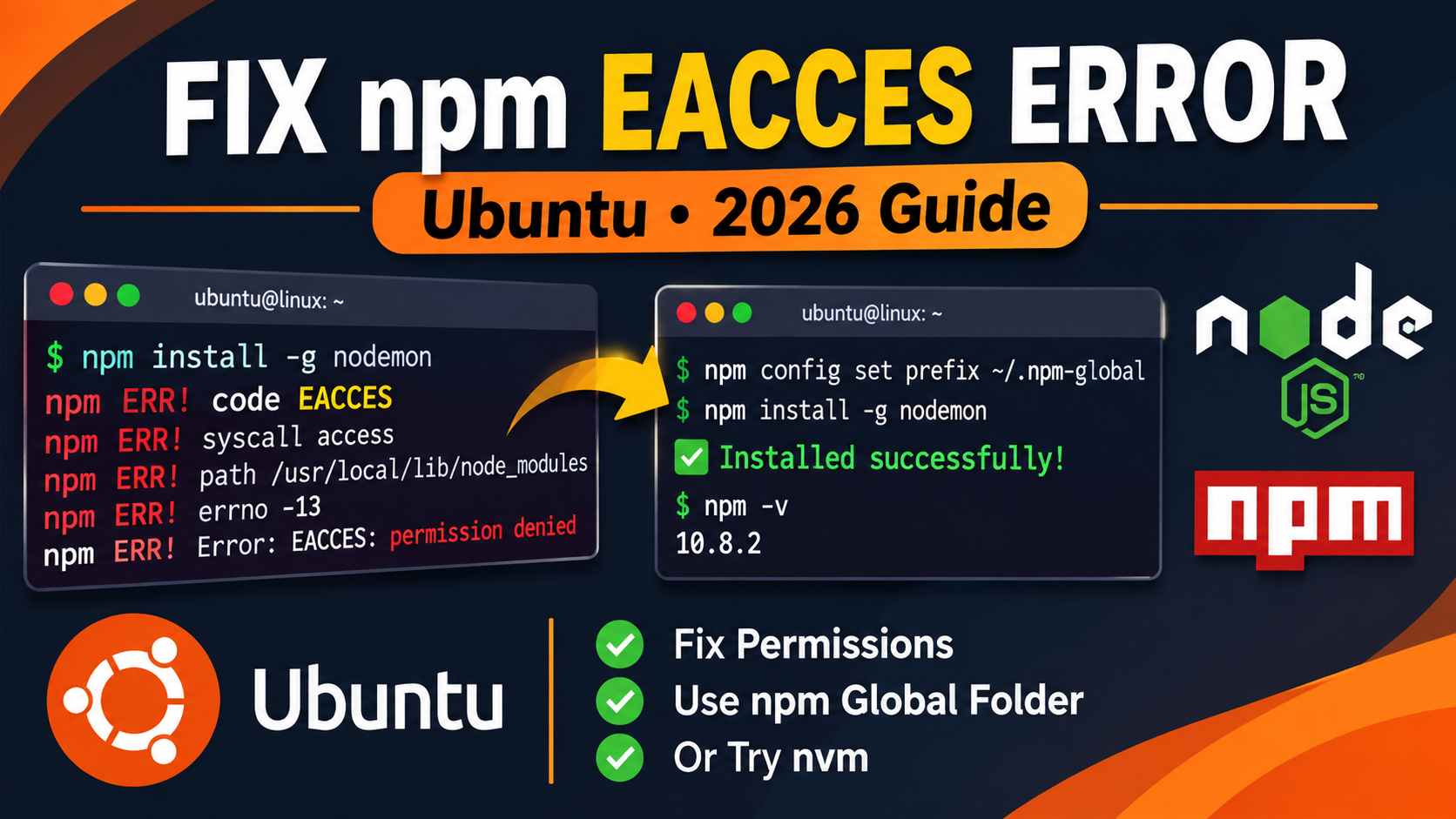
You are installing a package with npm install -g and suddenly the terminal shows EACCES: permission denied. This is one of the most common errors for beginners on Ubuntu and other Linux systems. The good news: it is easy to fix, and you do not need to run everything as root.
In this guide you will learn why the error happens and three safe ways to fix it.
What does the EACCES error look like?
The error usually looks like this:
npm ERR! code EACCES
npm ERR! syscall mkdir
npm ERR! path /usr/lib/node_modules/typescript
npm ERR! errno -13
npm ERR! Error: EACCES: permission denied, mkdir '/usr/lib/node_modules/typescript'
EACCES simply means “access denied”. npm is trying to write into a folder (like /usr/lib/node_modules) that belongs to the root user, and your normal user account is not allowed to write there.
Why you should avoid sudo npm install -g
The quick “fix” you will see on many forums is sudo npm install -g package-name. It works, but it is a bad habit:
- Package install scripts run with full root power, which is a security risk.
- Files created by root can cause new permission errors later.
- It hides the real problem instead of solving it.
Use one of the methods below instead.
Fix 1: Change npm’s global folder (simple and safe)
Tell npm to install global packages inside your home directory, where you already have permission.
- Create a folder for global packages:
mkdir -p ~/.npm-global - Tell npm to use it:
npm config set prefix '~/.npm-global' - Add it to your PATH. If you use bash:
echo 'export PATH=$HOME/.npm-global/bin:$PATH' >> ~/.bashrc
source ~/.bashrc
If you use zsh, replace
~/.bashrcwith~/.zshrc. - Test it:
npm install -g typescript
tsc --version
You can confirm the new folder with:
npm config get prefixGet latest updates everyday on adyblaze.com
Fix 2: Use nvm (best for developers)
nvm (Node Version Manager) installs Node.js and npm inside your home folder, so permission errors mostly disappear. It also lets you switch between Node versions for different projects.
- Install nvm (check the nvm GitHub page for the latest version number and replace it below):
curl -o- https://raw.githubusercontent.com/nvm-sh/nvm/v0.40.1/install.sh | bash - Close and reopen the terminal, then install the latest LTS version of Node.js:
nvm install --lts - Check the versions:
node -v
npm -v
Now npm install -g will work without sudo. If you installed Node earlier with apt, nvm will use its own copy once you load it.
Fix 3: Fix ownership of the npm cache
Sometimes the error mentions the ~/.npm folder instead of /usr/lib:
npm ERR! Your cache folder contains root-owned files, due to a bug in
npm ERR! previous versions of npm which has since been addressed.
This happens when you ran npm with sudo at some point. Give the folder back to your user:
sudo chown -R $(id -u):$(id -g) ~/.npmThen run your install command again.
Which fix should you choose?
- Fix 1 if you just want the error gone quickly.
- Fix 2 (nvm) if you are learning web development and will work on many projects.
- Fix 3 if the error mentions the
~/.npmcache folder.
Common mistakes to avoid
- Running
sudo chmod -R 777on system folders. This is unsafe. - Mixing apt-installed Node.js and nvm-installed Node.js without checking which one is active. Use
which nodeto see. - Forgetting to run
source ~/.bashrcafter editing it, so the new PATH is not loaded.
FAQ
Is it safe to use sudo with npm?
It is better to avoid it for global installs. Use one of the fixes above so packages install under your own user.
Will these fixes work on Debian, Linux Mint or WSL?
Yes. The steps are the same on most Linux distributions, including Ubuntu on WSL.
I still get EACCES after Fix 1. What now?
Run npm config get prefix and check that it points to your home folder. Then run echo $PATH and make sure ~/.npm-global/bin is included. Open a new terminal and try again.
Related guides on AdyBlaze: How to Install Node.js and npm on Windows 11 and How to Install React on Linux.