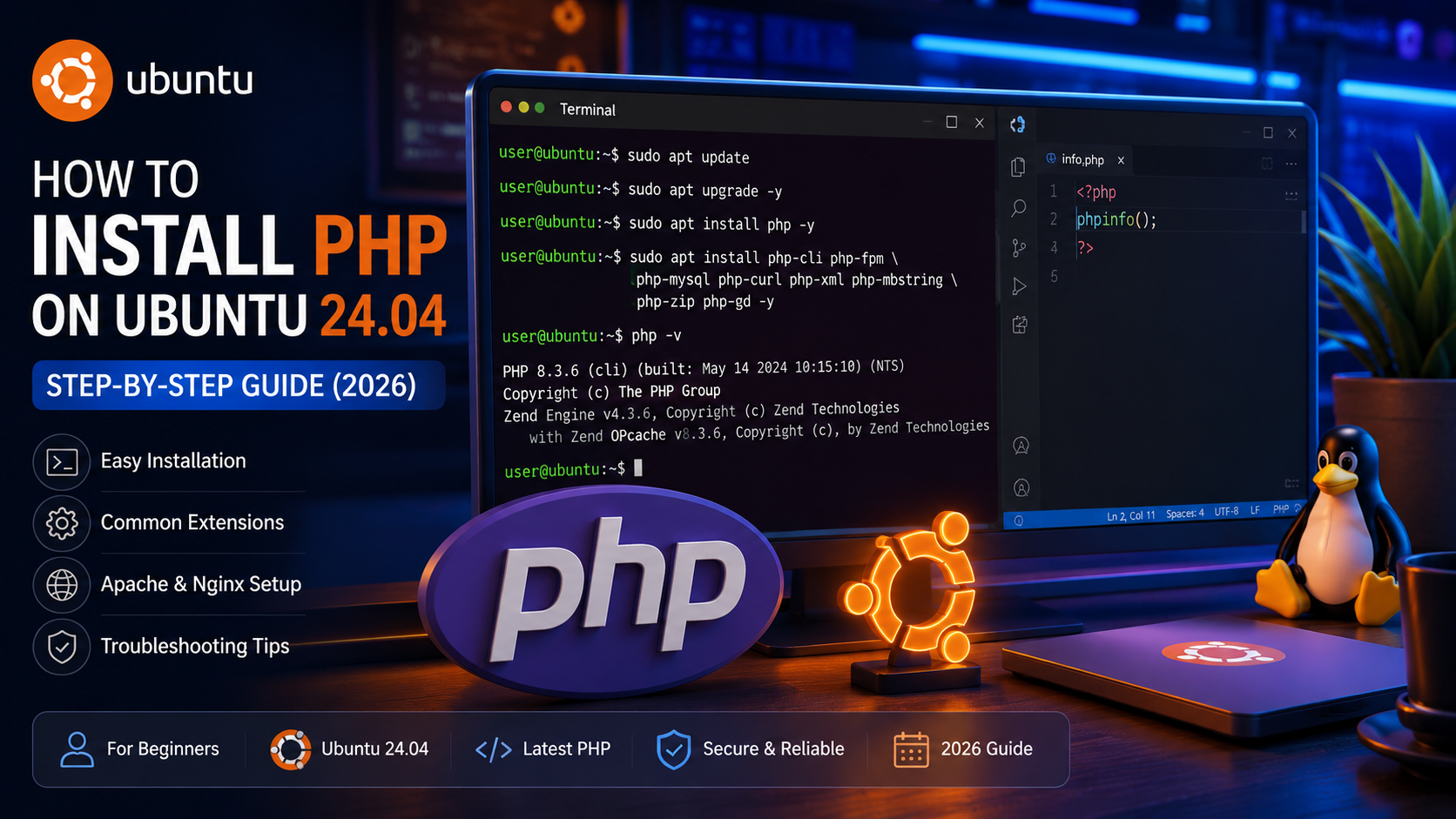
If you want to build dynamic websites or web applications, installing PHP is the first step. Ubuntu 24.04 is one of the most popular Linux distributions for developers because it is stable, secure, and easy to use.
In this tutorial, you will learn how to install PHP on Ubuntu 24.04 from scratch. We will also install commonly used PHP extensions, verify the installation, and prepare your system for PHP development.
Whether you are a beginner or an experienced developer, this guide will help you set up a complete PHP development environment.
Prerequisites
Before installing PHP, make sure you have:
- Ubuntu 24.04 installed
- Internet connection
- A user account with sudo privileges
- Terminal access
To open the terminal, press:
Ctrl + Alt + T
Step 1: Update Your Ubuntu System
Before installing any package, it is recommended to update your package list and upgrade existing packages.
Run the following commands:
sudo apt update
sudo apt upgrade -y
Why is this important?
Updating your system ensures:
- Latest security patches
- Bug fixes
- New package versions
- Better compatibility with PHP packages
Once the update is complete, reboot your system if required.
Step 2: Install PHP
Installing PHP on Ubuntu 24.04 is straightforward.
Run:
sudo apt install php -yUbuntu will download and install the latest PHP package available in its repositories.
The installation may take a few minutes depending on your internet speed.
Step 3: Verify PHP Installation
After the installation is complete, verify that PHP has been installed successfully.
Run:
php -vExample output:
PHP 8.x.x (cli)
Zend Engine
Zend OPcache
If you see the PHP version information, congratulations! PHP has been installed successfully.
If you receive “php: command not found”, don’t worry. We will cover troubleshooting later in this guide.
Step 4: Install Common PHP Extensions
Most PHP applications require additional extensions.
Install the commonly used extensions with the following command:
sudo apt install php-cli php-fpm php-mysql php-curl php-xml php-mbstring php-zip php-gd -yWhat do these extensions do?
| Extension | Purpose |
|---|---|
| php-cli | Run PHP scripts from the terminal |
| php-fpm | High-performance PHP process manager |
| php-mysql | Connect PHP with MySQL/MariaDB |
| php-curl | Send HTTP requests and use APIs |
| php-xml | Read and process XML files |
| php-mbstring | Handle multilingual text |
| php-zip | Create and extract ZIP archives |
| php-gd | Image processing and thumbnail generation |
These extensions are sufficient for most beginner and intermediate PHP projects.
Step 5: Check Installed Modules
To see all installed PHP modules, run:
php -mThis command displays every enabled PHP module installed on your system.
It is useful for troubleshooting and verifying whether required extensions are available.
What’s Next?
Now that PHP is installed, the next steps are:
- Verify PHP in your browser using phpinfo()
- Configure Apache or Nginx
- Set up a local development environment
- Learn how to write your first PHP program
These topics are covered in the next part of this guide.